

How to Disable Automatic Firmware Updates in Select HP Printers
Quick answer: If your HP printer is working well and you use compatible cartridges, turning off automatic firmware updates can help reduce the risk of a future update changing how your printer recognises those cartridges.
Firmware updates are not automatically bad. They can include bug fixes, security improvements, app updates and general printer improvements. The issue is control. When updates install automatically, your printer may change overnight without you choosing to make that change.
Why automatic firmware updates can be a problem
Printer firmware is the built-in software that controls how your printer operates. It affects print quality, network behaviour, cartridge recognition, error messages and other printer functions.
On some HP printers, firmware updates can also affect cartridge authentication. That means a toner or ink cartridge that worked previously may suddenly stop being recognised after an update. This is especially frustrating if you have already bought spare cartridges, or if the printer was working perfectly before the update.
Disabling automatic firmware updates does not stop you from updating your printer forever. It simply gives you the choice to review updates before they are installed.
When should you consider disabling automatic firmware updates?
You may want to turn off automatic firmware updates if:
- You use compatible toner or ink cartridges.
- Your printer is currently working well.
- You want to avoid unexpected cartridge recognition errors.
- You prefer to review firmware updates manually before installing them.
- You run a home office or business where printer downtime is a hassle.
If you only use genuine HP cartridges and want every update installed as soon as it is released, leaving automatic updates on may suit you. But if you use compatible cartridges, manual control is usually the safer option.
Important trade-off
Turning off automatic firmware updates can help protect cartridge compatibility, but it also means you may miss automatic fixes or security improvements. The practical approach is to disable automatic updates, then manually check update notes if you are troubleshooting a printer issue or if HP recommends an update for your specific model.
In other words, the goal is not to avoid every firmware update. The goal is to avoid surprise updates.
How to disable automatic firmware updates on select HP printers
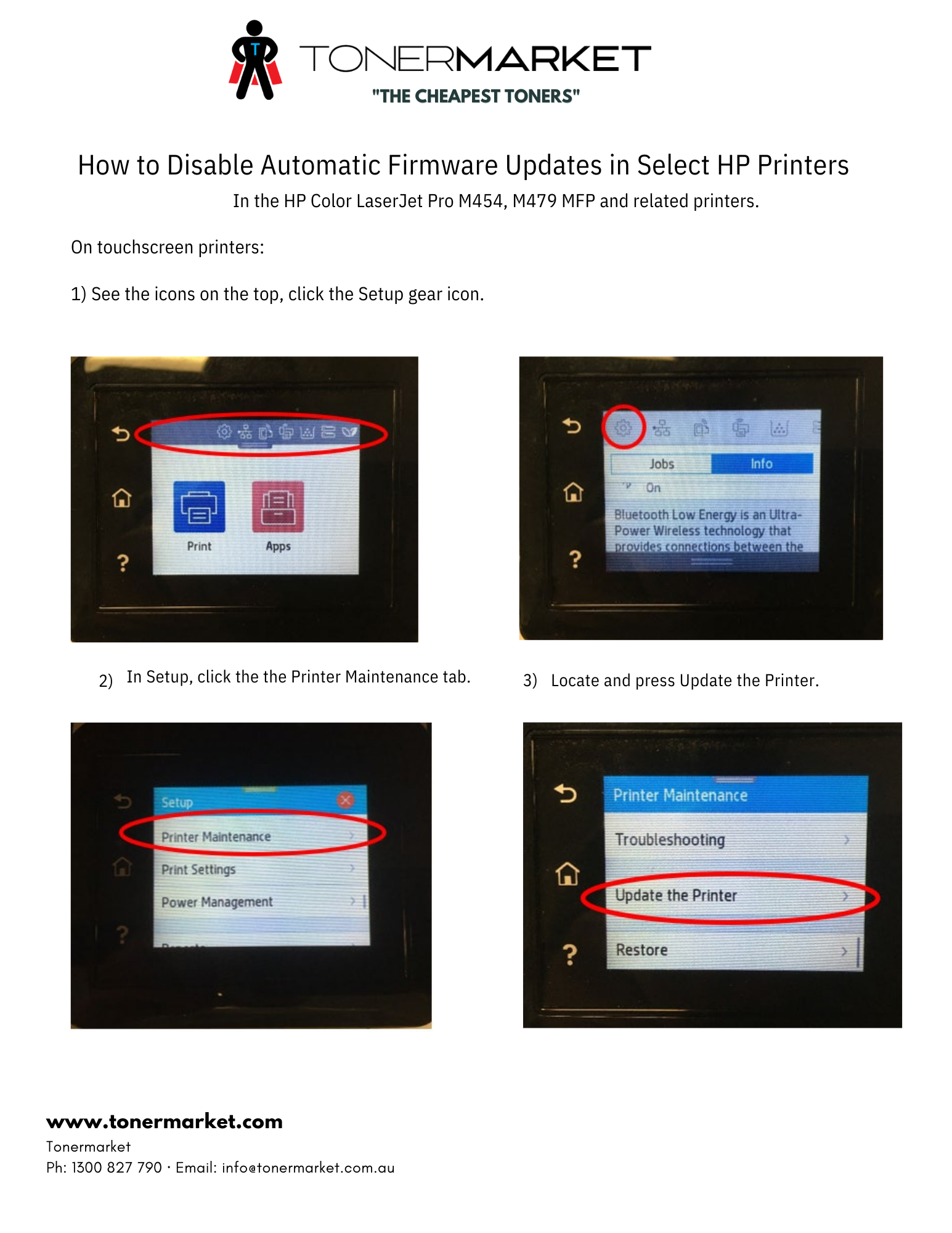
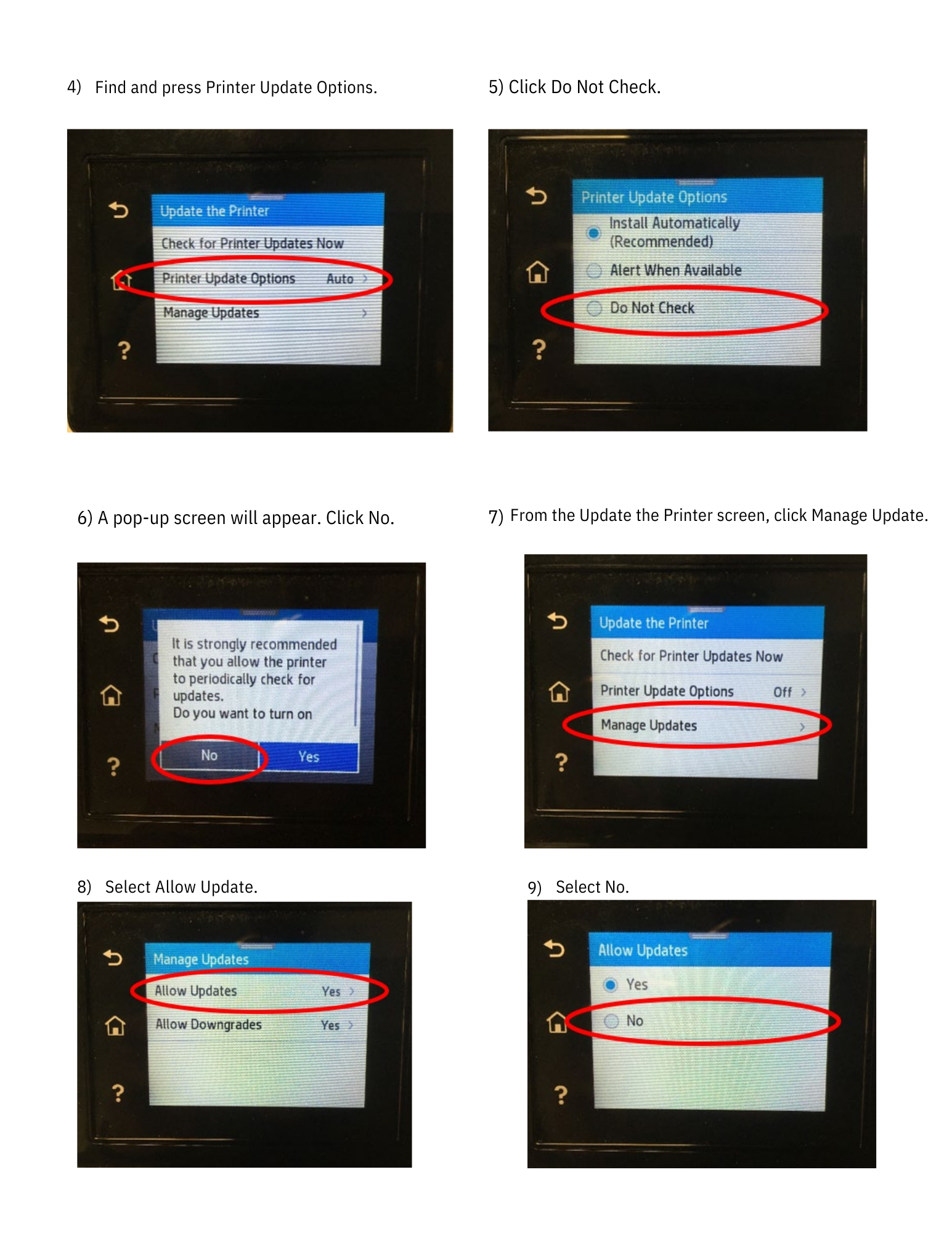
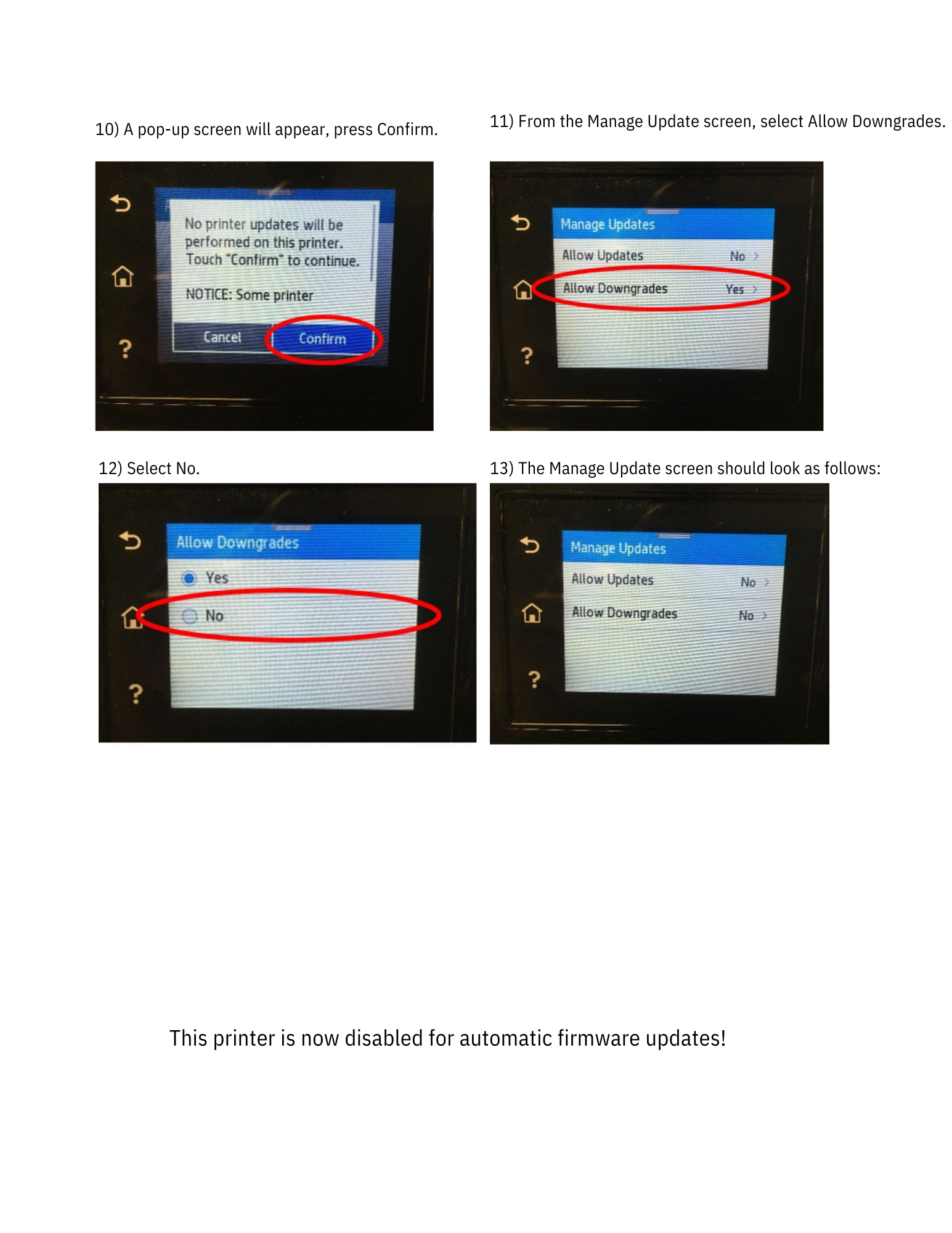
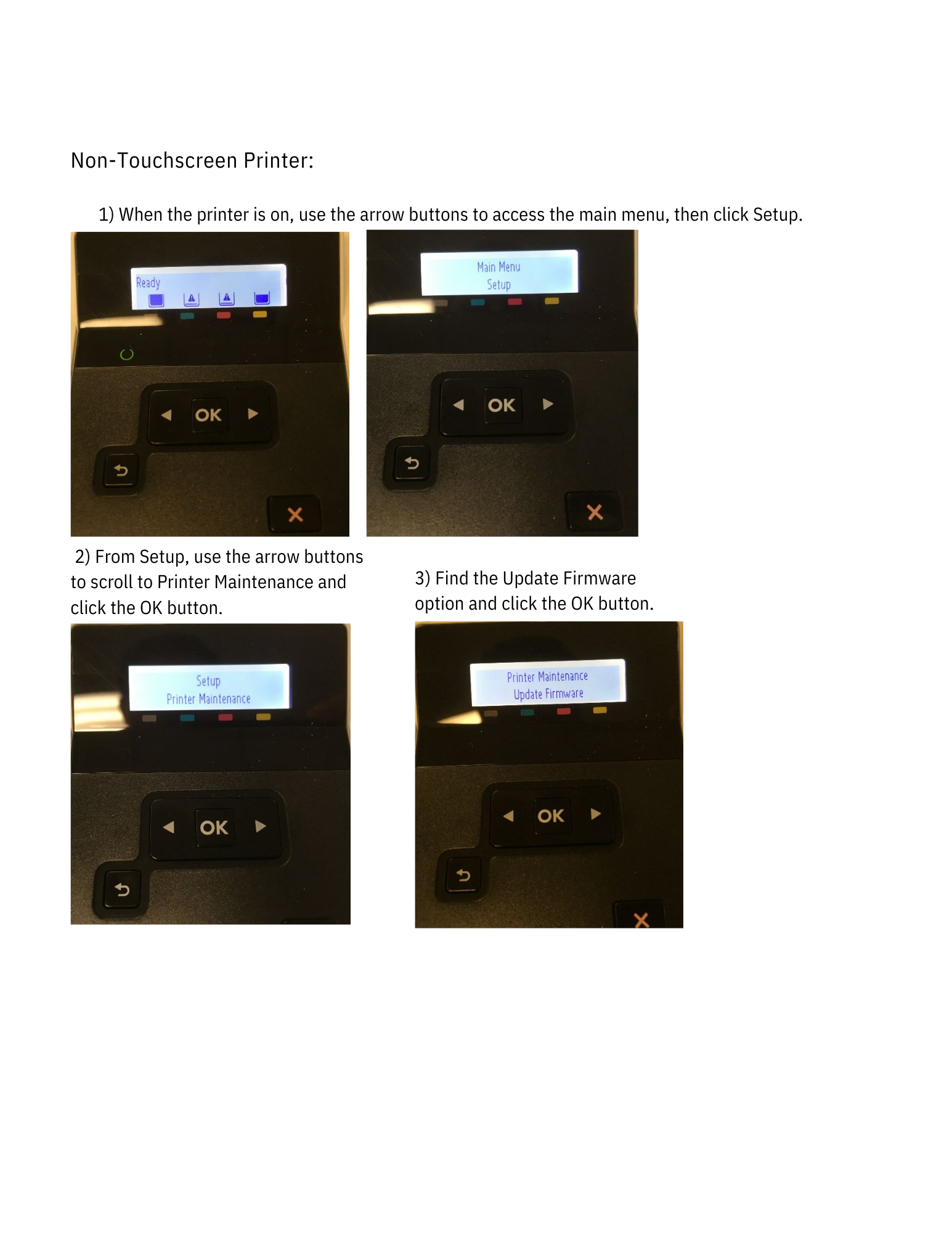
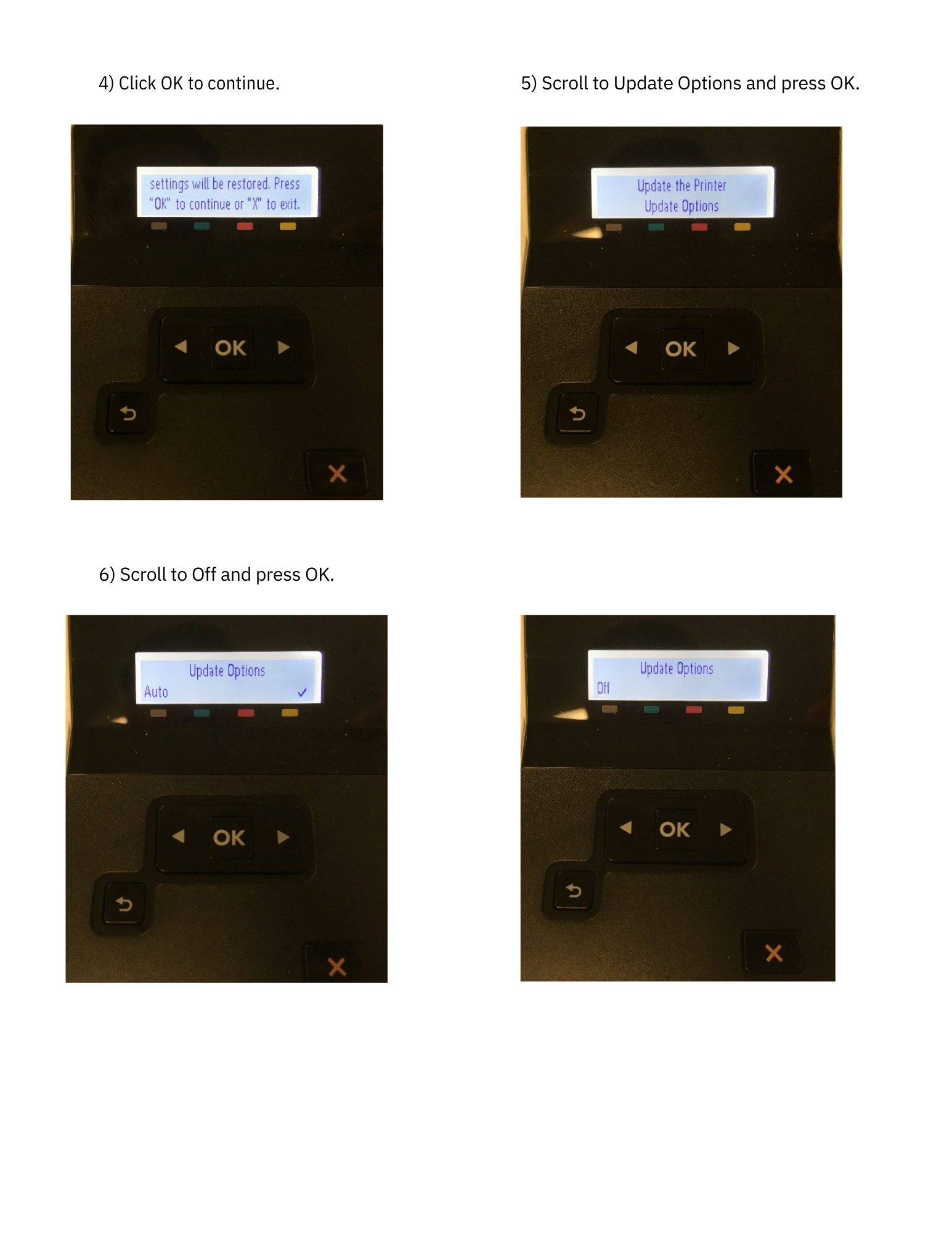
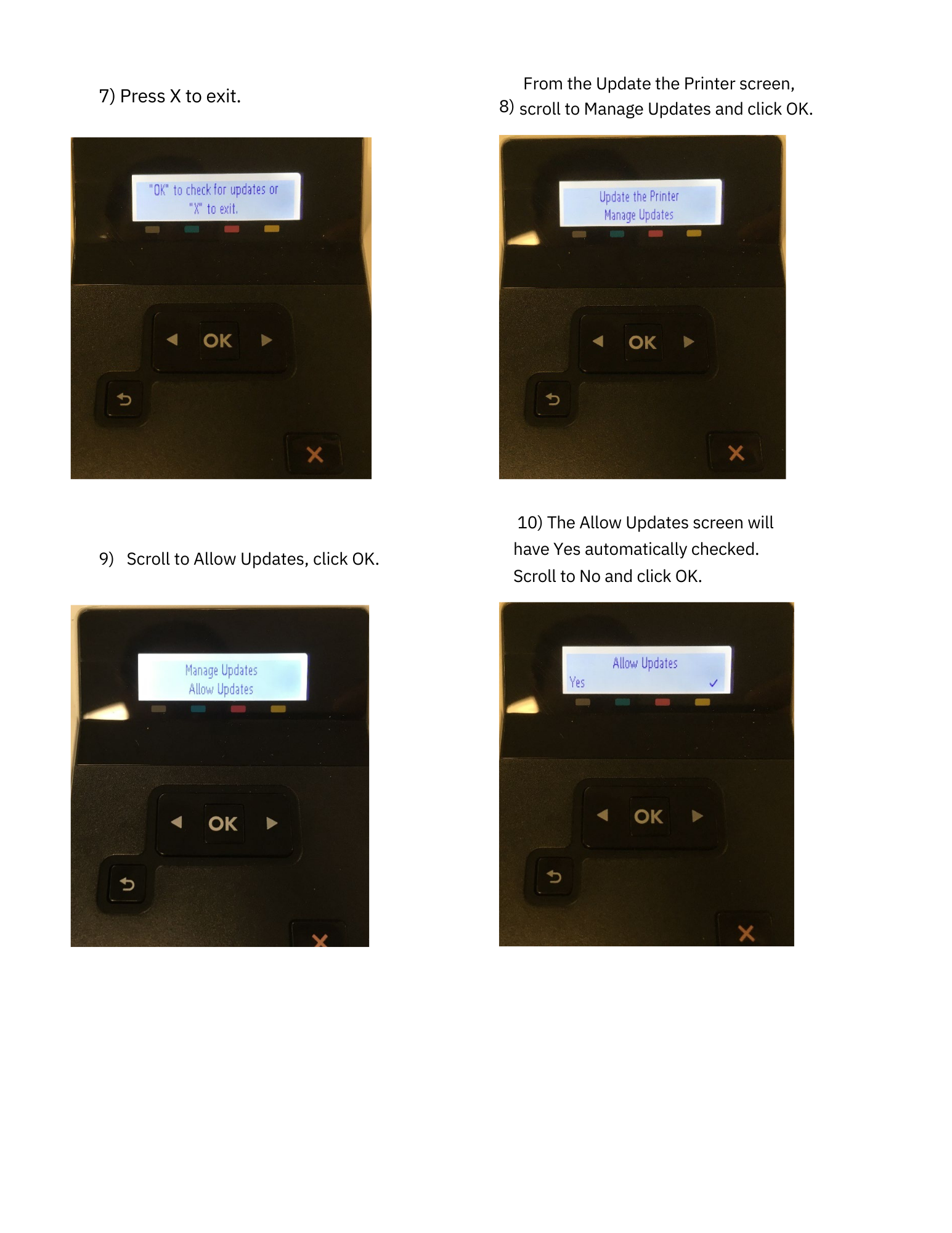
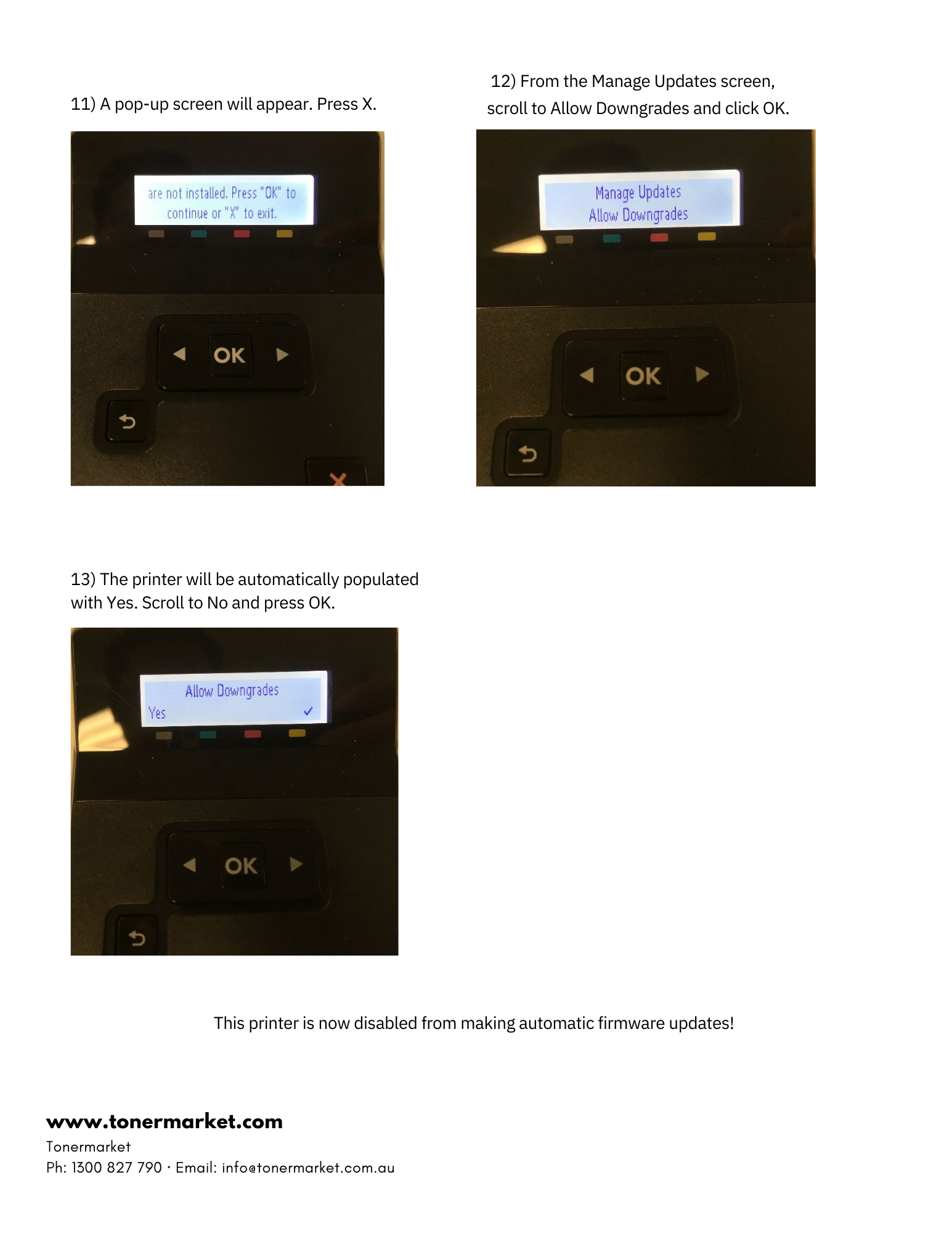
The exact menu names can vary depending on your HP printer model, but the general process is shown in the screenshots below. Look for settings such as Printer Maintenance, Printer Update, Firmware Update or Auto Update.
If your printer menu looks different, check the printer control panel, HP Smart app, or the printer’s embedded web server settings.
Need cartridges for your HP printer?
Once your printer settings are under control, the next step is making sure you buy the right cartridges for your printer model. You can browse our HP toner and ink cartridges, or read our guide on whether compatible ink cartridges and toners are right for you.
If you print regularly, it may also be worth looking at high-yield toner cartridges, which can reduce how often you need to replace cartridges.
Final tip
Before changing any firmware settings, make a note of your printer model and current firmware version if your printer displays it. That gives you a reference point if you ever need to troubleshoot the printer later.